RamerLabs Karaoke: Host a Shared YouTube Karaoke Party in Your Browser
Everyone knows the classic karaoke night problem. One phone gets plugged into a speaker. Someone monopolizes the queue. Half the room cannot see the lyrics. The other half is stuck waiting while a single person scrolls YouTube looking for “the right version.” By the third song, the energy dips – not because people do not want to sing, but because the setup fights the party.
RamerLabs Karaoke was built to fix that. It turns karaoke into a shared browser party: one host screen for video and sound, every guest on their phone for search and queueing, and a live room that keeps everyone in sync. The live app is free to try at https://karaoke.ramerlabs.com.
This guide explains what the product is, how host and guest roles work, how the shared queue behaves, and how to run a smooth karaoke night from the first QR scan to the last encore.
What RamerLabs Karaoke is
RamerLabs Karaoke is a web app for party karaoke using official YouTube playback. There is no download ripper, no shady converter, and no install required for guests. You open a room in the browser, put the host on a TV or laptop connected to speakers, and let friends join with a short room code or QR scan.
It is for house parties, office events, family reunions, and weekend get-togethers where you want:
- One clear stage (the host device)
- Many controllers (guest phones)
- A fair shared queue
- Karaoke videos that already show lyrics on screen
- Almost zero setup friction
If you have ever wished karaoke worked more like a shared playlist and less like a single phone takeover, this is that product.
Host vs guest: why the split matters
The most important design choice is the host and guest split.
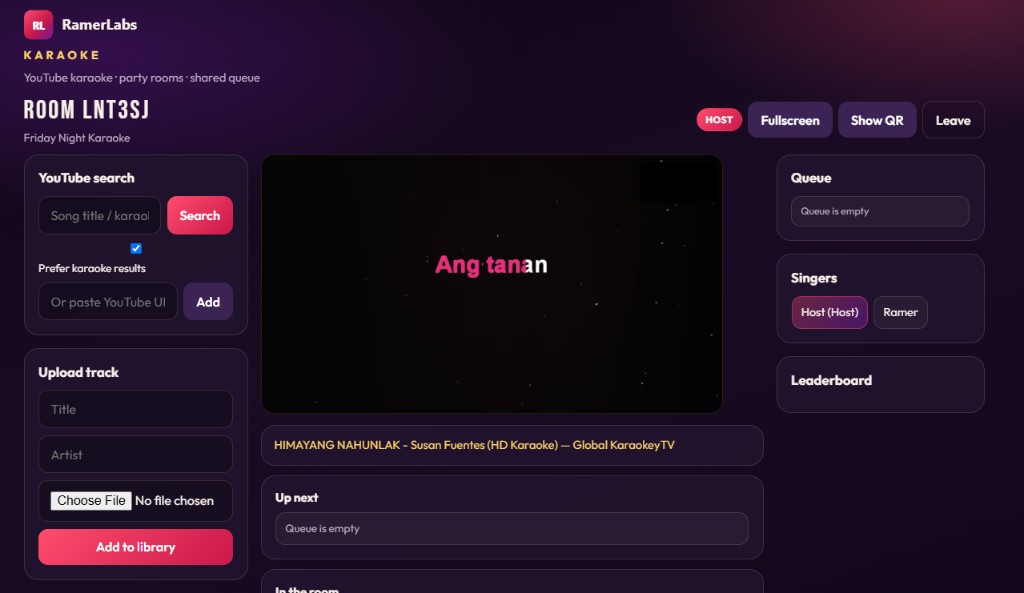
Host creates the room on the TV or main laptop. That device plays the YouTube karaoke video and audio. The host controls Play, Pause, Next, and Fullscreen. The host also shows the QR code so guests can join quickly.
Guests join from their phones. They search YouTube, queue songs, and see who is in the room. Guests do not take over the TV player. Playback stays on the host so the party has one stage and one sound source.
That split solves the usual chaos: five phones casting, volume wars, and people accidentally pausing the wrong device. Everyone contributes songs. One screen performs them.
How a karaoke night flows
1. Open the host stage
On the TV or speaker laptop, open karaoke.ramerlabs.com and create a room. Give it a name like “Friday Night Karaoke” and enter your host name. You receive a six-character room code and a join QR.
Put the page in Fullscreen when you are ready. The lyrics should fill the screen so people at the back of the room can still read them.
2. Guests join in seconds
Guests do not need an account. They open the same site and either:
- Tap Scan host QR code and point at the host screen, or
- Type the room code and their singer name
As soon as they join, they appear in the singers list on the host. The host QR can hide after the first join so the stage stays clean. Tap Show QR whenever the next person arrives.
3. Queue songs from any phone
Guests search for karaoke tracks (keep “Prefer karaoke results” checked), or paste a YouTube URL. Tap Queue. The song shows on the host under Up next and in the party Queue.
Tips that make nights better:
- Choose videos that already display lyrics in the video itself
- Prefer “karaoke”, “videoke”, or “instrumental with lyrics” versions
- Queue two or three songs ahead so the room never goes silent
4. Autoplay keeps the party moving
If the stage is idle and someone queues a song, the host starts it. When a song ends, the next queued track autoplays. Hosts can still Pause, Play, or Next at any time.
That matters more than it sounds. The biggest killer of karaoke energy is dead air while someone hunts for the next track. Autoplay through a shared queue keeps the room singing.
Fair queue rules for shared parties
RamerLabs Karaoke is designed for fairness, not just convenience.
- Songs play in order from the shared queue.
- When the stage is idle, a newly queued song can start on the host automatically.
- Only the guest who owns the next queued song can nudge with Ask host to play.
- Everyone else waits their turn – which stops queue-jumping from phones.
This is party mode, not free-for-all remote control. Guests contribute. The host remains the stage manager.
What happens if the host disconnects
Parties are messy. Tabs refresh. Wi-Fi hiccups. Someone unplugs the wrong cable.
The queue is persisted so songs are not wiped when the host briefly disconnects. Guests can keep adding tracks while the host is offline. When the host rejoins the same room, the queue is restored. After a refresh, the host can use Rejoin room instead of creating a brand-new empty session.
Use Leave only when the party is truly over and you want a fresh start.
Features at a glance
- YouTube search plus official embed playback (no downloads)
- Paste YouTube URL to queue
- Party rooms with share codes and QR join
- Live shared queue, now-playing, and singers list
- Host autoplay through the queue
- Fullscreen stage mode for TVs
- Queue persistence across host reconnects
- Optional audio upload library
- Pitch and tempo for uploaded audio
- Optional mic energy scoring and leaderboard
- Mobile tabs: Stage, Search, and Party
Getting started checklist
- Open https://karaoke.ramerlabs.com on the host device.
- Create a room and display the QR.
- Connect the host to speakers or a TV.
- Have guests scan and join with their names.
- Queue karaoke videos with on-screen lyrics.
- Use Fullscreen on the host for better readability.
- Let autoplay run the queue; use Pause or Next when needed.
- Optional: enable Mic score and save results to the leaderboard.
If YouTube search is not configured on a self-hosted install, paste-URL playback still works. Search needs a YouTube Data API key on the server.
About YouTube ads
Because playback uses YouTube’s official player, ads can still appear on monetized videos. YouTube Premium usually removes them. RamerLabs Karaoke does not block ads, and it does not download or convert YouTube audio. That keeps the product compatible with YouTube’s terms and safer for real-world parties.
FAQ
Do guests need to install an app?
No. Guests use the browser on their phones. Scan the QR or enter the room code.
Can guests play sound from their phones?
Playback is designed for the host stage. Guests queue songs; the host plays them so the room has one speaker and one lyric screen.
What if I refresh the host by accident?
Use Rejoin room. The queue is saved so you do not lose the playlist.
Can we use local MP3 files?
Yes. Hosts can upload audio to the library. For most parties, YouTube karaoke videos with on-screen lyrics are the fastest path.
Is this only for English songs?
No. Any karaoke-style YouTube video works – including regional and language-specific videoke tracks – as long as YouTube can embed it.
Who this is perfect for
RamerLabs Karaoke fits hosts who want less tech stress and more singing:
- Friends running a Friday night living-room karaoke
- Teams hosting a casual office celebration
- Families who want kids and adults to queue from their own phones
- Event hosts who need a big lyric screen and a fair shared queue
You do not need a dedicated karaoke machine. You need a browser, speakers, and a room full of people ready to sing.
Try it tonight
Open the live app, create a room, and invite the first guest with QR:
Source and docs: github.com/ramerlabs/ramerlabs-karaoke
Questions or support: support@ramerlabs.com | ramerlabs.com
Put the TV on stage. Put the queue in everyone’s hands. Keep the songs coming.